
The three reliable ways to view your itinerary without internet are app offline mode, a downloadable PDF export, and offline maps downloaded separately. Use app offline mode when your plans might still change, export a PDF when you want a guaranteed backup you can share, and grab offline maps for navigation. The simplest move: open your itinerary app and download or export everything before you travel.
TL;DR:
- Combining app offline mode, PDF exports, and offline maps provides the most reliable and flexible offline trip planning approach.
- Offline app caches update only when online, so syncing before departure and reopening on Wi-Fi ensures the latest data is stored locally.
- PDFs remain static and serve as guaranteed backups, but do not reflect updates or changes made after creation.
- Offline maps lack real-time traffic information, so leaving extra travel time and setting alerts for delays improves navigation accuracy.
- For group trips, sharing a live itinerary link and encouraging each participant to cache the current version minimizes outdated information and routing errors.
Table of Contents
- What offline access actually includes
- How app offline modes and PDF exports actually work
- Offline methods compared: what to use and when
- Your 24 to 48 hour offline prep checklist
- What won't work offline, and how to cover yourself
- How CrewsCanvas helps groups keep offline copies reliable
- The one offline strategy worth defaulting to
- Plan your next group trip without the offline guesswork
- Sources
- FAQ
What offline access actually includes
"Offline access" covers more than just flight times. A well prepared offline itinerary usually stores your bookings, reservation numbers, driving or walking directions, PDF tickets, photos of documents, and any personal notes you added.
This matters most in a handful of common situations:
- Flights and long bus rides where you have no signal for hours.
- Remote travel, like national parks or rural regions with patchy coverage.
- Trips abroad where you're avoiding roaming charges.
- Group trips where not everyone has data access at the same time.
There's an important distinction buried in all of this: a live itinerary updates the moment something changes, while an offline copy is frozen the second you download it. Both have a place, but they solve different problems.
How app offline modes and PDF exports actually work
Most travel apps cache your itinerary automatically the moment you open them on a connected device. That cached copy sits on your phone and stays accessible even without signal, but it only reflects what existed the last time you synced. If an organizer changes a hotel or a flight time after that, your cached version won't know until you reconnect and reopen the app.
A PDF export behaves differently. You generate it once, it saves to your device's downloads or Files app, and it stays exactly as it was created. Some itinerary builders include a simple "create PDF" option that generates the file in a new tab, ready to save or share, and some recommend sharing a live link so each traveler downloads their own copy instead of relying on one person to distribute files.
- Cached app data: updates automatically, but only when you're online to receive the update.
- Saved PDF: never updates on its own, but it's always there, even on a brand new device.
Pro Tip: Keep both. A cached app plus a saved PDF covers you whether your plans change or your phone just needs a restart.
Offline methods compared: what to use and when
Each offline method solves a slightly different problem, so most trips benefit from combining more than one.
- App offline mode: Open your itinerary app on Wi-Fi before you leave and let it finish syncing. This usually saves your full schedule, confirmation numbers, and any attached documents, and it's the method to lean on if your trip details might still shift.
- Downloadable PDF export: Generate this from your itinerary platform's dashboard and save it to your phone or email it to yourself. It's a frozen snapshot, which is exactly why it's reliable: nothing can break it once it's saved.
- Screenshots or notes: A quick fallback for a single confirmation number or gate assignment when you don't need the whole itinerary, just one detail fast.
- Offline maps: Downloaded separately from your itinerary, through your maps app, not your travel planner, because navigation data and schedule data live in different systems entirely.
For a short domestic flight, app offline mode alone is often enough to check Destinations Travel Flight Deals with Global Holiday Planner and stay organized. For remote adventure travel, pair a PDF export with offline maps so you have backups that don't depend on any app working correctly. For group trips, the safest combo is a shared PDF everyone downloads individually, plus each person opening the group app once before departure to force their own cache to update.
Pro Tip: If your trip involves more than two people, don't rely on one person's phone as the group's only offline copy.
Your 24 to 48 hour offline prep checklist
Do this the day or two before you leave, while you still have reliable Wi-Fi:
- Open your itinerary app and wait for any sync or download banner to finish completely.
- Export a PDF copy of your itinerary and save it to your phone's Files app or a cloud folder you can open offline.
- Download offline maps for every area you'll visit, including any layover cities.
- Save boarding passes, confirmation numbers, and emergency contacts into a note or your Files app, separate from the main itinerary.
- Switch your phone to airplane mode and test that the app, the PDF, and the maps all open without a connection.
That last step catches almost every problem before it becomes one. If something doesn't load, you still have time to fix it.
What won't work offline, and how to cover yourself
Some parts of your itinerary simply need a connection to function. Web links embedded in your itinerary, live flight status, and real-time gate changes all pull from servers you can't reach offline, so they'll either fail to load or show outdated information.
Offline maps carry their own limitation: they lack real-time traffic, and travel times shown are estimates calculated without current congestion. Downloaded maps stay static until you reconnect and let them refresh, which Google's own maps system does automatically roughly every two weeks when you have signal.
A few mitigations close most of the gap:
- Turn on airline text alerts for gate and delay notifications, since those often arrive over SMS even without data.
- Save key phone numbers (airline, hotel, car rental) as plain contacts, not just links inside an app.
- Keep more than one copy of critical documents: one on your phone, one as a PDF, one printed if the trip is remote enough to warrant it.
- Test everything in airplane mode before you leave home, not at the gate.
Downloaded offline maps do not include live traffic data, so build in extra time for driving routes rather than trusting the estimated arrival time. Google documents this limitation directly, noting that offline travel times are calculated without congestion.
How CrewsCanvas helps groups keep offline copies reliable
Group trips multiply the offline problem, because one person's outdated PDF can send five people to the wrong hotel. CrewsCanvas is built around the idea that the organizer shouldn't be the only one responsible for keeping everyone's copy current.
- The AI itinerary builder generates a shareable schedule that updates in one place rather than across a dozen text threads.
- A shared trip link lets every participant open the itinerary themselves and pull their own current copy, rather than waiting on a forwarded file.
- Export and print options let the organizer generate a PDF snapshot for anyone who wants a backup that doesn't depend on an app.
- SplitEase keeps shared costs and receipts attached to the same trip, so expense details travel with the itinerary instead of living in a separate app.
The simplest group workflow: the organizer finalizes the itinerary, shares the live link, and asks everyone to open it on Wi-Fi before departure. That single step forces each person's device to cache the current version, with a PDF export as the fallback for anyone who skips it. More on how this works is on the CrewsCanvas tools page.
The one offline strategy worth defaulting to

For most trips, the strongest approach is the combination: sync your app, export a PDF, and download offline maps separately. That trio covers freshness through the app, a guaranteed backup through the PDF, and navigation through the maps, so no single failure point ruins your trip.
The one exception is a short, simple trip with no connectivity gaps planned. A single app sync might be all you need there.
— CrewsCanvas
Plan your next group trip without the offline guesswork
Group trips create more offline risk than solo ones, since everyone needs their own current copy, not just the organizer. CrewsCanvas was built around that exact problem: one shared itinerary that each traveler can open, sync, or export on their own, instead of relying on a single forwarded PDF that's already out of date by the time it lands in someone's inbox.
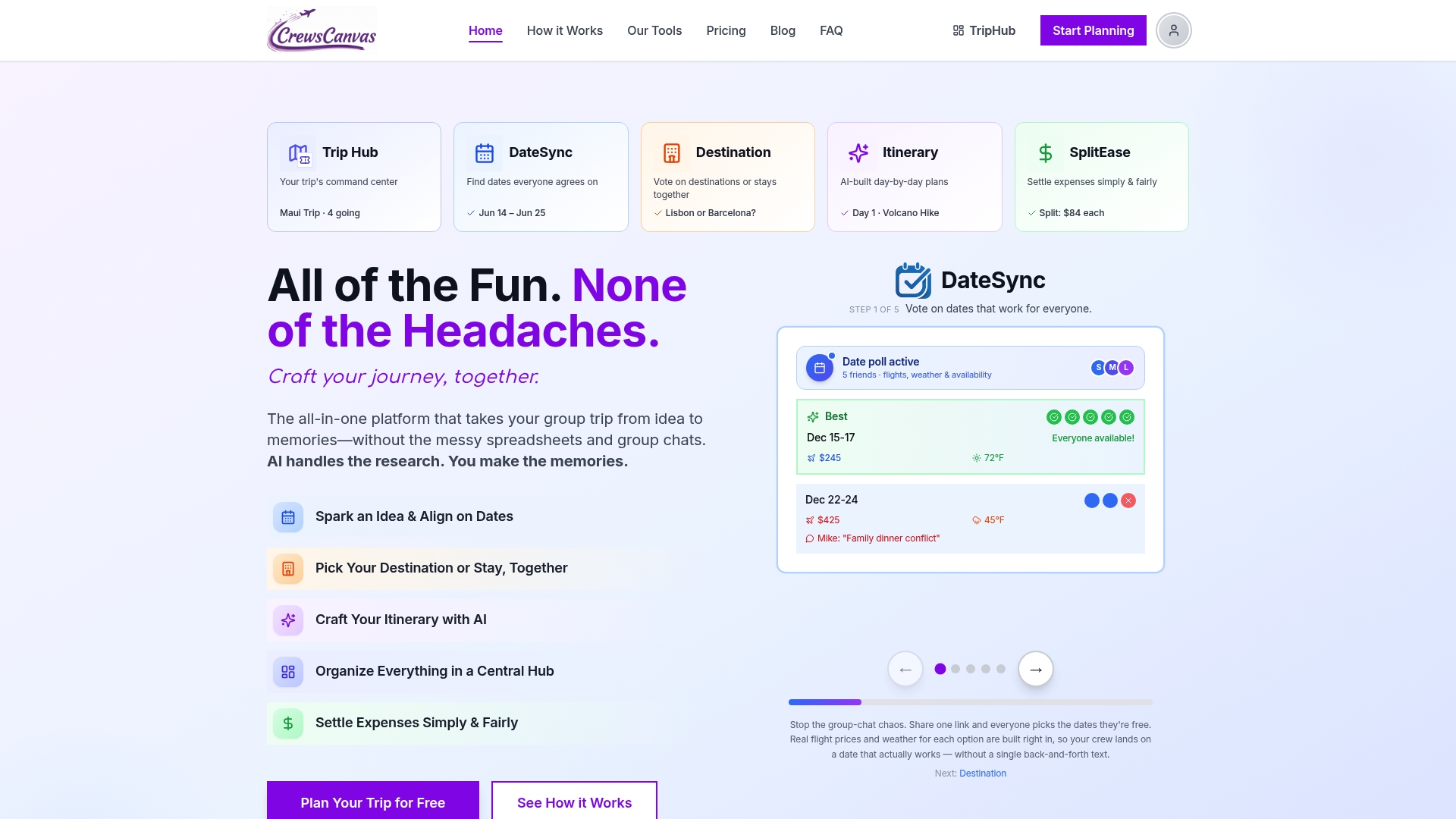
The platform includes tools for itinerary building, date polling, and expense sharing within one trip hub, and participants do not need to create an account to use it.
| Plan | Price | Best for |
|---|---|---|
| Free | No published price | Small groups testing the basics |
| Pro Subscription | $9.99 per month | Frequent organizers running multiple trips |
| One-Trip Pro | $14.99 one-off | A single trip needing extra capacity |
Check the pricing page to see which plan fits your group, or start building your next itinerary today.
Sources
A few official pages are worth saving alongside your itinerary itself:
- Google Maps offline
- How to download Google Maps to use offline
- How do I create a PDF of an itinerary for my client? | Travefy Help Center
FAQ
What is the best app to manage travel itineraries?
There's no single best app for every traveler, since the right choice depends on whether you're planning solo or coordinating a group. For group trips, look for a platform that lets everyone view and sync the itinerary themselves rather than relying on one person's forwarded files.
Can you access TripIt offline?
Travel apps generally cache your itinerary when you open them on a connected device, making the content available afterward without signal. The safest approach with any app, including TripIt, is to open it on Wi-Fi shortly before you travel so it has a chance to fully sync.
How do I get a travel itinerary without paying?
Many itinerary tools offer a free tier that covers the basics, including PDF export, without requiring a paid plan. CrewsCanvas, for example, offers a free plan with no published price for smaller groups building their first itinerary.
Can Wanderlog be used offline?
Travel planning apps that support offline mode typically require you to open the app while connected first, so it can download and cache your trip details locally. Once cached, that content stays accessible until you need updated information, which requires reconnecting.
How do I keep my offline itinerary copy current?
Offline copies, whether cached in an app or saved as a PDF, only reflect the information available at the time you last synced or downloaded. After any change to dates, times, or activities, reopen your app on Wi-Fi or download a fresh PDF to replace the outdated version.