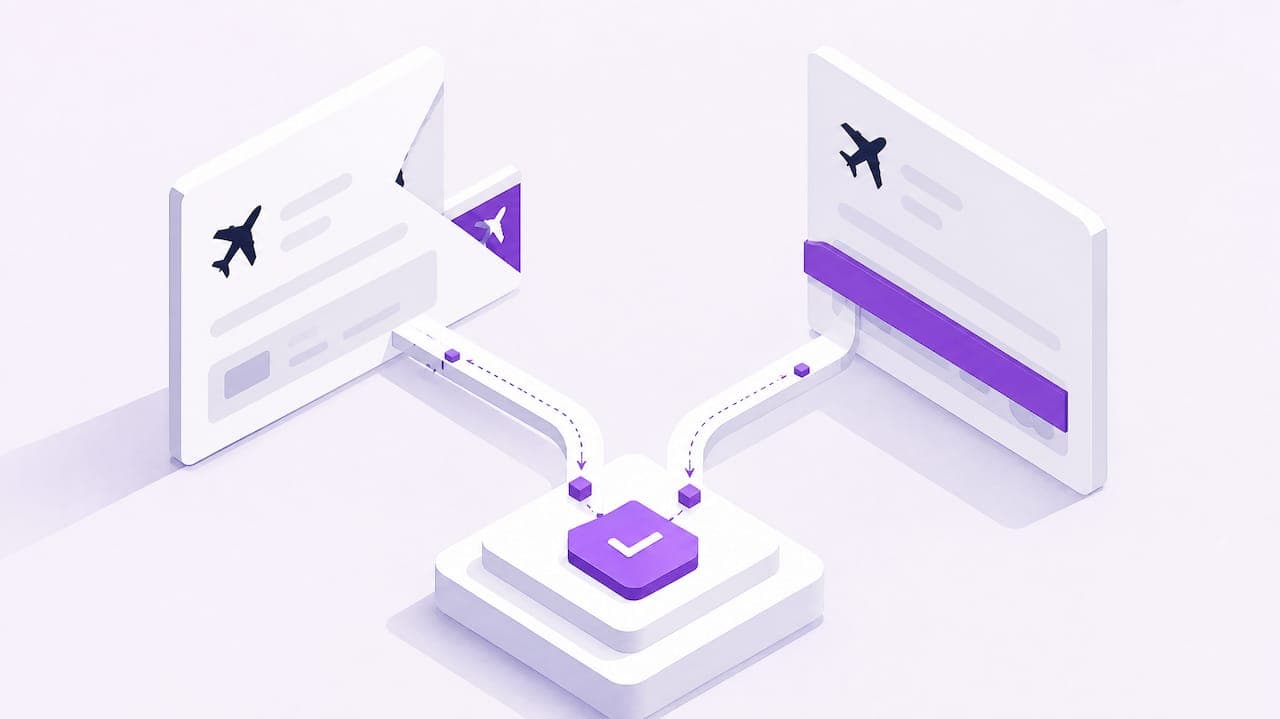
Yes, you can usually share screenshots of bookings for casual purposes like showing friends your flight details or confirming a hotel stay, but the practice carries real risk. The single most important precaution is to mask or crop out barcodes, QR codes, and payment details before you hit send, and to check whether the vendor actually accepts a screenshot as proof before relying on one.
TL;DR:
- Sharing booking screenshots is common but risky; always mask or crop out barcodes, QR codes, and payment details before sending.
- Use encrypted messaging apps like Signal or WhatsApp for more sensitive screenshots, and prefer official sharing features over simple image sharing.
- Redact card numbers, full reservation codes, barcodes, and contact details to prevent misuse if the screenshot is forwarded or posted publicly.
- Some apps block screenshots to prevent fraud or content theft; in these cases, use the app's share features or export official passes instead.
- Small hosts or peer-to-peer transfers often accept screenshots, but airlines and large venues typically require official mobile wallet passes or printed tickets.
Table of Contents
- How do you capture a clean booking screenshot on any device?
- What are the safest ways to send a booking screenshot?
- What should you hide before sharing a booking screenshot?
- Why do some apps block screenshots, and what should you do instead?
- When is a screenshot actually accepted as proof?
- What do you do when a screenshot won't scan or gets rejected?
- How does this apply to planning a group trip?
- A few rules of thumb worth remembering
- How CrewsCanvas keeps your group out of the screenshot shuffle
- FAQ
- Sources
How do you capture a clean booking screenshot on any device?
Before you share anything, you need a screenshot that actually shows what matters. Let the confirmation page or app fully load first. Half-loaded pages often hide fields like your confirmation number or crop out the barcode entirely.
Here's how to capture one on the device you're holding:
- iPhone: Press the side button and volume up button together, then tap the thumbnail to crop or mark up sensitive fields before sharing.
- Android: Press power and volume down together (this varies slightly by manufacturer), then use the built-in editor to trim or annotate the image.
- Windows: Press Windows key, Shift, and S together to open Snip & Sketch, then drag to select just the confirmation area.
- macOS: Press Shift, Command, and 4 to select a region, or Shift, Command, and 5 for more capture options including a timer.
If your booking includes a barcode or QR code, capture it full-frame without cropping into the code itself, and avoid screen glare that can make it unreadable later. Switching the app to full-screen view before capturing usually gives you a cleaner result.
What are the safest ways to send a booking screenshot?
Once you have the image, the delivery method matters almost as much as the capture. Some channels are fine for casual, low-stakes sharing. Others deserve more caution when the screenshot includes anything sensitive.
- SMS or iMessage works for quick, informal sharing among people you trust, but messages aren't always encrypted end to end depending on the carrier and recipient's device.
- Signal or WhatsApp use end-to-end encryption, making them a better choice when the screenshot includes a confirmation number, partial payment info, or a barcode.
- Email with an attachment is useful when you want a permanent record, though it sits in inboxes indefinitely unless you delete it on both ends.
- A password-protected or expiring cloud link works well for group trips where several people need the same document without it living in everyone's camera roll forever.
Whichever method you choose, tell the recipient clearly what the screenshot is for and whether they should delete it after use. That one sentence of instruction prevents a lot of confusion later, especially when a booking changes and an old screenshot gets resent by mistake.
What should you hide before sharing a booking screenshot?
Not every field on a confirmation page needs to travel with the screenshot. Some fields create real exposure if they end up in the wrong hands, especially if the image gets forwarded again or posted somewhere public.
- Card numbers or partial card digits should always be cropped out, even if only the last four digits show.
- Full confirmation or reservation numbers can sometimes be used to look up or modify a booking, so blur them unless the recipient truly needs the full code.
- Barcodes and QR codes deserve extra caution because they can be reused if copied, so only include one when the recipient genuinely needs to scan it for entry.
- Email addresses and phone numbers tied to the account should be blurred if you're sharing with anyone outside your immediate travel group.
Redacting is quick. On iPhone, open the screenshot and tap the Markup pen icon to black out or blur specific areas. Android's built-in photo editor offers a similar crop and draw tool. Always save a redacted copy separately so your original, unedited screenshot stays private on your device.
Pro Tip: If a barcode absolutely must be shared for entry, check whether the booking app lets you add the recipient as an authorized traveler instead. That avoids sending a scannable image at all.
Why do some apps block screenshots, and what should you do instead?
Plenty of booking and ticketing apps disable screenshots on certain screens, and it's rarely an accident. The block usually falls into one of two categories.
- Policy-based blocks exist to prevent fraud, since a copied barcode can sometimes be scanned by someone other than the ticket holder.
- Technical or DRM-based blocks protect licensed content, like a streaming confirmation or a digital pass tied to specific viewing rights.
When you hit a block, the fix isn't to find a workaround. Use the app's built-in share ticket feature if one exists, forward the original confirmation email instead, or request a PDF or mobile wallet pass that the recipient can save directly. Rooting a device, jailbreaking it, or using third-party screen-capture tools to bypass a block can expose your device to malware and may violate the app's terms of service, putting your account or payment method at risk.
When is a screenshot actually accepted as proof?
Acceptance depends heavily on who's checking. A small vacation rental host or a friend coordinating a peer-to-peer ticket transfer often accepts a screenshot without a second thought. Airlines, large concert venues, and major sports arenas typically do not, since their entry systems are built to scan an official barcode tied to a specific account.
- Peer transfers and small hosts: a clear screenshot showing dates, names, and confirmation status is usually enough.
- Airlines and large venues: these generally require a mobile wallet pass, an official in-app ticket, or a printed pass rather than a screenshot.
- Better alternatives when in doubt: forward the original confirmation email, export a PDF version, save the pass to Apple Wallet or Google Wallet, or add a traveler directly through the booking platform.
If you're not sure which category your booking falls into, a quick check of the vendor's policy page or a call to customer support before travel day saves you from a stressful moment at the gate or the door.
What do you do when a screenshot won't scan or gets rejected?
Barcode and screenshot problems almost always have a quick fix, and most come down to image quality or using the wrong format for the venue's system.
- If a barcode won't scan, retake the screenshot full-frame with better lighting, or open the barcode fullscreen directly in the app and let staff scan from the live screen instead of a photo.
- If screenshots are blocked entirely, forward the confirmation email, use the app's official share function, or save the pass to your phone's wallet.
- If a recipient gets turned away at entry, have the original purchaser log into the booking account on-site or pull up the confirmation email, since that resolves most identity mismatches on the spot.
How does this apply to planning a group trip?
Group trips multiply the screenshot problem fast. Instead of five people forwarding the same confirmation with slightly different crops, a shared trip workspace can hold the official reservation link and a redacted copy once, in one place. Assigning one organizer to collect the originals and post masked versions keeps payment details out of the group chat entirely, while everyone still sees the dates, names, and confirmation status they actually need.

A few rules of thumb worth remembering
After working through enough group trips and booking mix-ups, three habits consistently save people trouble: confirm the vendor actually accepts a screenshot before relying on one, redact more aggressively than feels necessary, and reach for the official share feature before the camera roll. Screenshots are fine for a quick heads-up in a trusted small group. They're a bad idea for a public social post, where a booking number or travel date can sit exposed to anyone scrolling by.
— CrewsCanvas
How CrewsCanvas keeps your group out of the screenshot shuffle
We built CrewsCanvas so your group never has to pass the same blurry screenshot around five different chat threads. Instead of someone forwarding a raw confirmation with a card number still visible, we let you drop the official reservation link and a redacted summary into a shared trip space that everyone can see.
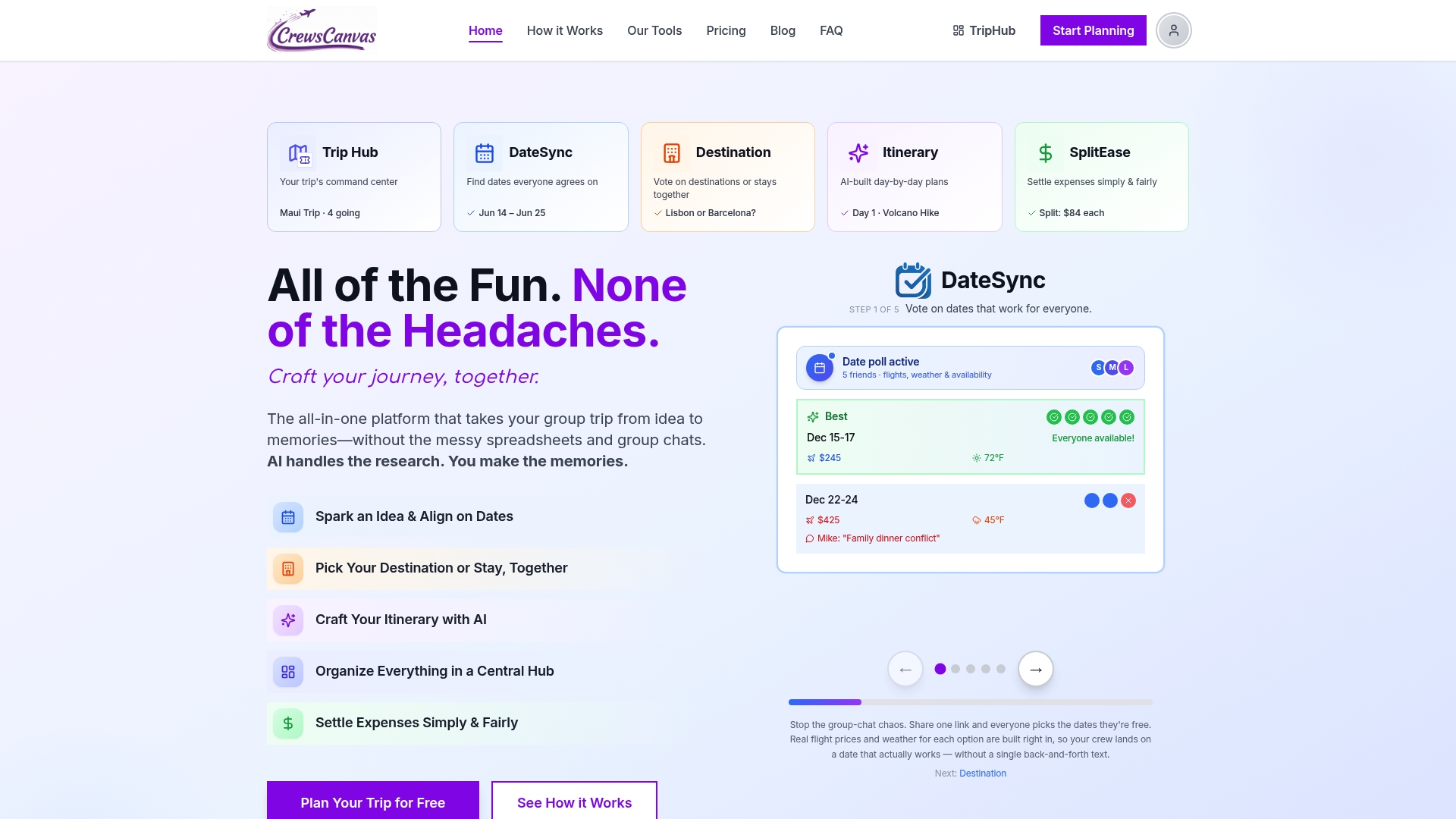
- DateSync handles the scheduling vote so you're not screenshotting a poll from three different apps.
- TripHub stores your trip documents and reservation links in one place, so nobody has to dig through old texts to find the hotel confirmation.
- SplitEase tracks shared costs directly, which means you're not sending screenshots of receipts just to prove who paid for what.
If you're tired of being the group's unofficial screenshot archivist, take a look at our pricing and see which plan fits your next trip, whether that's the free tier or the one-time One-Trip Pro upgrade.
FAQ
How do I share my screenshots?
You can send a screenshot through text, email, an encrypted messaging app like Signal or WhatsApp, or a cloud link, depending on how sensitive the information is. For anything with a confirmation number or barcode, an encrypted app or a password-protected link is safer than a plain text message.
Is sharing screenshots illegal?
Sharing a screenshot of your own booking generally isn't illegal, but bypassing an app's screenshot block or reusing someone else's barcode to gain unauthorized entry can violate terms of service and create fraud risk. Stick to official share features when an app offers one.
Why can't I share my screenshot?
Some booking and ticketing apps disable screenshots on certain screens for fraud prevention or to protect licensed content. When that happens, look for the app's built-in share or email option instead of trying to work around the block.
Can screenshots of tickets work?
Screenshots can work for informal transfers, like handing a ticket to a friend, but larger venues and airlines typically require an official mobile wallet pass or in-app ticket tied to a scannable, account-linked barcode. Check the vendor's policy ahead of time if you're unsure whether a screenshot will be accepted at the door.
Sources
- Don't Get Turned Away: 5 Gate Day Checks for Screenshot Tickets
- Panama City Beach Vacation Rentals | Homes, Condos, Things To Do